Starbeamrainbowlabs

Stardust
Blog


Archive


Mailing List Articles Atom Feed Comments Atom Feed Twitter Reddit Facebook

Tag Cloud

3d 3d printing account algorithms android announcement architecture archives arduino artificial intelligence artix assembly async audio automation backups bash batch blender blog bookmarklet booting bug hunting c sharp c++ challenge chrome os cluster code codepen coding conundrums coding conundrums evolved command line compilers compiling compression conference conferences containerisation css dailyprogrammer data analysis debugging defining ai demystification distributed computing dns docker documentation downtime electronics email embedded systems encryption es6 features ethics event experiment external first impressions freeside future game github github gist gitlab graphics guide hardware hardware meetup holiday holidays html html5 html5 canvas infrastructure interfaces internet interoperability io.js jabber jam javascript js bin labs latex learning library linux lora low level lua maintenance manjaro minetest network networking nibriboard node.js open source operating systems optimisation outreach own your code pepperminty wiki performance phd photos php pixelbot portable privacy problem solving programming problems project projects prolog protocol protocols pseudo 3d python reddit redis reference release releases rendering research resource review rust searching secrets security series list server software sorting source code control statistics storage svg systemquery talks technical terminal textures thoughts three thing game three.js tool tutorial twitter ubuntu university update updates upgrade version control virtual reality virtualisation visual web website windows windows 10 worldeditadditions xmpp xslt

Multi-boot + data + multi-partition = octopus flash drive 2.0?

A while ago, I posted about a multi-boot flash drive. That approach has served me well, but I got a new flash drive a while ago - and for some reason I could never get it to be bootable in the same way.

After a frustrating experience trying to image a yet another machine and not being able to find a free flash drive, I decided that enough was enough and that I'd do something about it. My requirements are as follows:

  1. It has to be bootable via legacy BIOS
  2. It has to be bootable via (U)EFI
  3. I don't want multiple configuration files for each booting method
  4. I want to be able to store other files on it too
  5. I want it to be recognised by all major operating systems
  6. I want to be able to fiddle with the grub configuration without manually mounting a partition

Quite the list! I can confirm that this is all technically achievable - it just takes a bit of work to do so. In this post, I'll outline how you can do it too - with reasoning at each step as to why it's necessary.

Start by finding a completely free flash drive. Note that you'll lose all the data that's currently stored on it, because we need to re-partition it.

I used the excellent GParted for this purpose, which is included in the Ubuntu live CD for those without a supported operating system.

Start by creating a brand-new gpt partition table. We're using GPT here because I believe it's required for (U)EFI booting. I haven't run into a machine that doesn't understand it yet, but there's always a hybrid partition that you can look into if you have issues.

Once done, create a FAT32 partition that fills all but the last 128MiB or so of the disk. Let's call this one DATA.

Next, create another partition that fills the remaining ~128MiB of the disk. Let's call this one EFI.

Write these to disk. Once done, right click on each partition in turn and click "manage flags". Set them as such:

Partition Filesystem Flags
DATA FAT32 msftdata
EFI FAT32 esp, boot

This is important, because only partitions marked with the boot flag can be booted from via EFI. Partitions marked boot also have to be marked esp apparently, which is mutually exclusive with the msftdata flag. The other problem is that only partitions marked with msftdata will be auto-detected by operating systems in a GPT partition table.

It is for this reason that we need to have a separate partition marked as esp and boot - otherwise operating systems wouldn't detect and automount our flash drive.

Once you've finished setting the flags, close GParted and mount the partitions. Windows users may have to use a Linux virtual machine and pass the flash drive in via USB passthrough.

Next, we'll need to copy a pair of binary files to the EFI partition to allow it to boot via EFI. These can be found in this zip archive, which is part of this tutorial that I linked to in my previous post I linked to above. Extract the EFI directory from the zip archive to the EFI partition we created, and leave the rest.

Next, we need to install grub to the EFI partition. We need to do this twice:

  • Once for (U)EFI booting
  • Once for legacy bios booting

Before you continue, make sure that your host machine is not Ubuntu 19.10. This is really important - as there's a bug in the grub 2.04 version used in Ubuntu 19.10 that basically renders the loopback command (used for booting ISOs) useless when booting via UEFI! Try Ubuntu 18.04 - hopefully it'll get fixed soon.

This can be done like so:

# Install for UEFI boot:
sudo grub-install --target x86_64-efi --force --removable --boot-directory=/media/sbrl/EFI --efi-directory=/media/sbrl/EFI /dev/sdb
# Install for legacy BIOS boot:
sudo grub-install --target=i386-pc --force --removable --boot-directory=/media/sbrl/EFI /dev/sdb --removable

It might complain a bit, but you should be able to (mostly) ignore it.

This is actually ok - as this Unix Stack Exchange post explains - as the two installations don't actually clash with each other and just happen to load and use the same configuration file in the end.

If you have trouble, make sure that you've got the right packages installed with your package manager (apt on Linux-based systems). Most systems will be missing 1 of the following, as it seems that the installer will only install the one that's required for your system:

  • For BIOS booting, grub-pc-bin needs to be installed via apt.
  • For UEFI booting grub-efi-amd64-bin needs to be installed via apt.

Note that installing these packages won't mess with the booting of your host machine you're working on - it's the grub-pc and grub-efi-amd64 packages that do that.

Next, we can configure grub. This is a 2-step process, as we don't want the main grub configuration file on the EFI partition because of requirement #6 above.

Thankfully, we can achieve this by getting grub to dynamically load a second configuration file, in which we will store our actual configuration.

Create the file grub/grub.cfg on the EFI partition, and paste this inside:

# Load the configfile on the main partition
configfile (hd0,gpt1)/images/grub.cfg

In grub, partitioned block devices are called hdX, where X is a number indexed from 0. Partitions on a block device are specified by a comma, followed by the partition type and the number of the partition (which starts from 1, oddly enough). The block device grub booted from is always device 0.

In the above, we specify that we want to dynamically load the configuration file that's located on the first partition (the DATA partition) of the disk that it booted from. I did it this way around, because I suspect that Windows still has that age-old bug where it will only look at the first partition of a flash drive - which would be marked as esp + boot and thus hidden if we had them the other way around. I haven't tested this though, so I could be wrong.

Now, we can create that other grub configuration file on the DATA partition. I'm storing all my ISOs and the grub configuration file in question in a folder called images (specifically my main grub configuration file is located at /images/grub.cfg on the DATA partition), but you can put it wherever you like - just remember to edit above the grub configuration file on the EFI partition - otherwise grub will get confused and complain it can't find the configuration file on the DATA partition.

For example, here's a (cut-down) portion of my grub configuration file:

# Ref https://askubuntu.com/q/1186040/139735
# As far as I can tell, this bug only affects UEFI / EFI
rmmod tpm

# Just a header message - selecting this basically has no effect
menuentry "*** Bootable Images ***" { true }

submenu "Ubuntu" {
    set isofile="/images/ubuntu-18.04.3-desktop-amd64.iso"
    set isoversion="18.04 Bionic Beaver"
    #echo "ISO file: ${isofile}, version: ${isoversion}";

    loopback loop $isofile

    menuentry "[x64] Ubuntu Desktop ${isoversion}" {
        linux (loop)/casper/vmlinuz boot=casper setkmap=uk eject noprompt splash  iso-scan/filename=${isofile} --
        initrd (loop)/casper/initrd
    }
    menuentry "[x64] [ejectable] Ubuntu Desktop ${isoversion}" {
        linux (loop)/casper/vmlinuz boot=casper iso-scan/filename=$isofile setkmap=uk eject noprompt splash toram iso-scan/filename=${isofile} --
        initrd (loop)/casper/initrd
    }
    menuentry "[x64] [install] Ubuntu Desktop ${isoversion}" {
        linux (loop)/capser/vmlinuz  file=/cdrom/preseed/ubuntu.seed only-ubiquity quiet iso-scan/filename=${isofile} --
        initrd (loop)/install/initrd
    }
}


# Artix Linux
menuentry "Artix Linux" {
    set isofile="/images/artix-lxqt-openrc-20181008-x86_64.iso"

    probe -u $root --set=rootuuid
    set imgdevpath="/dev/disk/by-uuid/$rootuuid"

    loopback loop $isofile
    probe -l loop --set=isolabel

    linux (loop)/arch/boot/x86_64/vmlinuz archisodevice=/dev/loop0 img_dev=$imgdevpath img_loop=$isofile archisolabel=$isolabel earlymodules=loop
    initrd (loop)/arch/boot/x86_64/archiso.img
}

menuentry "Fedora Workstation 31" {
    set isofile="/images/Fedora-Workstation-Live-x86_64-31-1.9.iso"

    echo "Setting up loopback"
    loopback loop "${isofile}" 
    probe -l loop --set=isolabel
    echo "ISO Label is ${isolabel}"

    echo "Booting...."
    linux (loop)/isolinux/vmlinuz iso-scan/filename="${isofile}" root=live:CDLABEL=$isolabel  rd.live.image
    initrd (loop)/isolinux/initrd.img
}

menuentry "Offline Password Changer [01/02/2014]" {
    loopback loop /images/offline_password_changer.iso
    linux (loop)/VMLINUZ setkmap=uk isoloop=$isofile
    # initrd (loop)/initrd.cgz
    initrd (loop)/initrd
}

menuentry "Memtest 86+ 5.01" {
    linux16 /images/memtest86+.bin
}

submenu "Boot from Hard Drive" {
    menuentry "Hard Drive 0" {
        set root=(hd0)
        chainloader +1
    }
    menuentry "Hard Drive 1" {
        set root=(hd1)
        chainloader +1
    }
    menuentry "Hard Drive 2" {
        set root=(hd2)
        chainloader +1
    }
    menuentry "Hard Drive 3" {
        set root=(hd3)
        chainloader +1
    }
}

If you're really interested in building on your grub configuration file, I'll include some useful links at the bottom of this post. Specifically, having an understanding of the Linux boot process can be helpful for figuring out how to boot a specific Linux ISO if you can't find any instructions on how to do so. These steps might help if you are having issues figuring out the right parameters to boot a specific ISO:

  • Use your favourite search engine and search for Boot DISTRO_NAME_HERE iso with grub or something similar
  • Try the links at the bottom of this post to see if they have the parameters you need
  • Try looking for a configuration for a more recent version of the distribution
  • Try using the configuration from a similar distribution (e.g. Artix is similar to Manjaro - it's the successor to Manjaro OpenRC, which is derived from Arch Linux)
  • Open the ISO up and look for the grub configuration file for a clue
  • Try booting it with memdisk
  • Ask on the distribution's forums

Memdisk is a tool that copies a given ISO into RAM, and then chainloads it (as far as I'm aware). It can actually be used with grub (despite the fact that you might read that it's only compatible with syslinux):

menuentry "Title" {
    linux16 /images/memdisk iso
    initrd16 /path/to/linux.iso
}

Sometimes it can help with particularly stubborn ISOs. If you're struggling to find a copy of it out on the web, here's the version I use - though I don't remember where I got it from (if you know, post a comment below and I'll give you attribution).

That concludes this (quite lengthly!) tutorial on creating the, in my opinion, ultimate multi-boot everything flash drive. My future efforts with respect to my flash drive will be directed in the following areas:

  • Building a complete portable environment for running practically all the software I need when out and about
  • Finding useful ISOs to include on my flash drive
  • Anything else that increases the usefulness of flash drive that I haven't thought of yet

If you've got any cool suggestions (or questions about the process) - comment below!

Sources and Further Reading

PhD Update 1: Directions

Welcome to my first PhD update post. I intend to post these at bimonthly intervals. In the last post, I talked a bit about my PhD project that I'm doing and my initial thoughts. Since then, I've done heaps of investigation into a number of different potential directions I could take the project. For reference, my PhD title is actually as follows:

Using the Internet of Things, Big Data, and AI to dynamically map flood risk.

There are 3 main elements to this project:

  • Big Data
  • Artificial Intelligence (AI)
  • The Internet of Things (IoT)

I'm pretty sure that each of them will have an important role to play in the final product - even if I'm not sure what those roles are just yet :P

Particularly of concern at the moment is this blog post by Google. It talks about they've managed to significantly improve flood forecasting with AI along with a seriously impressive visualisation to back it up - but I can't find a paper on it anywhere. I'm concerned that anything I try to do in the area won't be useful if they are already streets ahead of everyone else like that.

I guess one of the strong points I should try to hit is the concept of explainable AI if possible.

All the data sources!

As it stands right now, I'm currently evaluating various different potential data sources that I've managed to gain access to. My aim here is to evaluate how useful they will be in solving the wider problem - and whether they are useful enough to be worth investigating further.

Environment Agency

Some great people from the environment agency came into University recently to chat with us about what they did. The discussion we had was very interesting - but they also asked if there was anything they could do to help our PhD projects out.

Seeing the opportunity, I jumped at the chance to get a hold of some of their historical datasets. They actually maintain a network of high-quality sensors across the country that monitor everything from rainfall to river statistics. While they have a real-time API that you can use to download recent measurements, it doesn't appear to go back further than March 2017. To this end, I asked for data from 2005 up to the end of 2017, so that I could get a clearer picture of the 2007 and 2013 floods for AI training purposes.

So far, this dataset has proved very useful at least initially as a testbed for training various kinds of AI as I learn PyTorch (see my recent post for how that has been going - I've started with a basic LSTM first. For reference, an LSTM is a neural network architecture that is good at processing time-series data - but is quite computationally expensive to run.

Met Office

I've also been investigating the datasets that the Met Office provide. These chiefly appear to be in the form of their free DataPoint API. Particularly of interest are their rainfall radar images, which are 500x500 pixels and are released every 15 minutes. Sadly they are only available for a few hours at best, so you have to grab them fast if you want to be able to analyse particularly interesting ones later.

Annoyingly though, their API does not appear to give any hints as to the bounding boxes of these images - and neither can I find any information about this online. I posted in their support forum, but it doesn't appear that anyone actually monitors it - so at this point I suspect that I'm unlikely to receive a response. Without knowing the (lat, lng) co-ordinates of the images produced by the API, they are little more use than pretty wall art.

Internet of Things

On the Internet of Things front, I'm already part of Connected Humber, which have a network of sensors setup that are monitoring everything from air quality to temperature, humidity, and air pressure. While these things aren't directly related to my project, the dataset that we're collecting as a group may very well come in handy as an input to a model of some description.

I'm pretty sure that I'll need to setup some additional custom sensors of my own at some point (probably soonish too) to collect the measurement readings that I'm missing from other pre-existing datasets.

Reading a library

Whilst I've been doing this, I've also been reading up a storm. I've started by reading into traditional physics-based flood modelling simulations (such as caesar-lisflood) - which appear to fall into a number of different categories, which also have sub-categories. It's quite a rabbit hole - but apparently I'm diving all the way down to the very bottom.

The most interesting paper on this subject I found was this one from 2017. It splits physics-based models up into 3 categories:

  • Empirical models (i.e. ones that just display sensor readings, calculate some statistics, and that's about it)
  • Hydrodynamic models - the best-known models that simulate water flow etc - can be categorised as either 1D, 2D, or 3D - also very computationally expensive - especially in higher dimensions
  • Simplified conceptual models - don't actually simulate water flow, but efficient enough to be used on large areas - also can be quite inaccurate with complex terrain etc.

As I'm going to be using artificial intelligence as the core of my project, it quickly became evident that this is just stage-setting for the actual kind of work I'll be doing. After winding my way through a bunch of other less interesting papers, I found my way to this paper from 2018 next, which is similar to the previous one I linked to - just for AI and flood modelling.

While I haven't yet had a chance to follow up on all the interesting papers referenced, it has a number of interesting points to keep in mind:

  • Artificial Intelligences need lots of diverse data points to train well
  • It's important to measure a trained network's ability to generalise what it's learnt to other situations it hasn't seen yet

The odd thing about this paper is that it claims that regular neural networks were better than recurrent neural network structures - despite the fact that it is only citing a single old 2013 paper (which I haven't yet read). This led me on to read a few more papers - all of which were mildly interesting and had at least something to do with neural networks.

I certainly haven't read everything yet about flood modelling and AI, so I've got quite a way to go until I'm done in this department. Also of interest are 2 newer neural network architectures which I'm currently reading about:

Next steps

I want to continue to read about the above neural networks. I also want to implement a number of the networks I've read about in PyTorch to continue to learn the library.

Lastly, I want to continue to find new datasets to explore. If you're aware of a dataset that I haven't yet talked about on here, comment below!

PyTorch and the GPU: A tale of graphics cards

Recently, I've been learning PyTorch - which is an artificial intelligence / deep learning framework in Python. While I'm not personally a huge fan of Python, it seems to be the only library of it's kind out there at the moment (and Tensorflow.js has terrible documentation) - so it would seem that I'm stuck with it.

Anyway, as I've been trying to learn it I inevitably came to the bit where I need to learn how to take advantage of a GPU to accelerate the neural network training process. I've been implementing a few test networks to see how it performs (my latest one is a simple LSTM, loosely following this tutorial).

In PyTorch, this isn't actually done for you automatically. The basic building blocks of PyTorch are tensors (potentially multi-dimensional arrays that hold data). Each tensor is bound to a specific compute device - by default the CPU (in which the data is stored in regular RAM). TO do the calculations on a graphics card, you need to bind the data to the GPU in order to load the data into the GPU's own memory - so that the GPU can access it and do the calculation. The same goes for any models you create - they have to be explicitly loaded onto the GPU in order to run the calculations in the right place. Thankfully, this is fairly trivial:

tensor = torch.rand(3, 4)
tensor = tensor.to(COMPUTE_DEVICE)

....where COMPUTE_DEVICE is the PyTorch device object you want to load the tensor onto. I found that this works to determine the device that the data should be loaded onto quite well:

COMPUTE_DEVICE = torch.device('cuda' if torch.cuda.is_available() else 'cpu')

Unfortunately, PyTorch (and all other AI frameworks out there) only support a technology called CUDA for GPU acceleration. This is a propriety Nvidia technology - which means that you can only use Nvidia GPUs for accelerated deep learning. Since I don't actually own an Nvidia GPU (far too expensive, and in my current laptop I have an AMD Radeon R7 M445 - and I don't plan on spending large sums of money to replace a perfectly good laptop), I've been investigating hardware at my University that I can use for development purposes - since this is directly related to my PhD after all.

Initially, I've found a machine with an Nvidia GeForce GTX 650 in it. If you run torch.cuda.is_available(), it will tell you if CUDA is available or not:

print(torch.cuda.is_available()) # Prints True if CUDA is available

.....but, as always, there's got to be a catch. Just because CUDA is available, doesn't mean to say that PyTorch can actually use it. After a bunch of testing, it transpired that PyTorch only supports CUDA devices with a capability index greater than or equal to 3.5 - and the GTX 650 has a capability index of just 3.0. You can see where this is going. I foound this webpage was helpful - it lists all of Nvidia's GPUs and their CUDA capability indices.

You can also get PyTorch to tell you more about the CUDA device it has found:

def display_compute_device():
    """Displays information about the compute device that PyTorch is using."""

    log(f"Using device: {COMPUTE_DEVICE}", newline=False)
    if COMPUTE_DEVICE.type == 'cuda':
        print(" {0} [Memory: {1}GB allocated, {2}GB cached]".format(
            torch.cuda.get_device_name(0),
            round(torch.cuda.memory_allocated(0)/1024**3, 1),
            round(torch.cuda.memory_cached(0)/1024**3, 1)
        ))

    print()

If you execute the above method, it will tell you more about the compute device it has found. Note that you can actually make use of multiple compute devices at the same time - I just haven't done any research into that yet.

Crucially, it will also generate a warning message if your CUDA device is too old. To this end, I'll be doing some more investigating as to the resources that the Department of Computer Science has available for PhD students to use....

If anyone knows of an artificial intelligence framework that can take advantage of any GPU (e.g. via OpenCL, oneAPI, or other similar technologies), do get in touch. I'm very interested to explore other options.

Exporting an SQLite3 database to a directory of CSV files

Recently I was working with a dataset I acquired for my PhD, and to pre-process said dataset into something more sensible I imported it into an SQLite3 database. Once I was finished processing it, I then needed to export it again into regular CSV files so that I could do other things, such as plot it with GNUPlot, or import it into InfluxDB (more on InfluxDB in a later post).

With the help of Stack Overflow and the SQLite3 man page, this didn't prove to be too difficult. To export a single SQLite3 table to a CSV file, you do this:

sqlite3 -bail -header -csv "bobsrockets.sqlite3" "SELECT * FROM 'table_name';" >"path/to/output_file.csv";

This is great for a single table, but what if we want to export all the tables? Well, we can iterate over all the tables in an SQLite3 database like so:

while read table_name; do
    echo "Exporting ${table_name}";

    # Do stuff
done < <(sqlite3 "bobsrockets.sqlite3" ".tables");

If we combine this with the previous snippet, we can export all the tables like so:

while read table_name; do
    log "Exporting ${table_name}";

    sqlite3 -bail -header -csv "bobsrockets.sqlite3" "SELECT * FROM '${table_name}';" >"${table_name}.csv"; 
done < <(sqlite3 "bobsrockets.sqlite3" ".tables");

Cool! We can make it even better with some simple improvements though:

  1. It's a pain to have to edit the script every time we want to change the database we're exporting
  2. It would be nice to be able to specify the output directory without editing the script too

Satisfying both of these points isn't particularly challenging. 10 minutes of fiddling got this the final completed script:

#!/usr/bin/env bash
set -e; # Don't allow errors

show_usage() {
    echo -e "Usage:";
    echo -e "\t./sqlite2csv.sh {db_filename} {output_dir}";
}

log() {
    echo -e "[ $(date +"%F %T") ] ${@}";
}

###############################################################################

db_filename="${1}";
output_dir="${2}";

if [ -z "${db_filename}" ]; then
    echo "Error: No database filename specified.";
    show_usage; exit;
fi
if [ -z "${output_dir}" ]; then
    echo "Error: No output directory specified.";
    show_usage; exit;
fi

if [ ! -d "${output_dir}" ]; then
    mkdir -p "${output_dir}"; 
fi

log "Output directory is ${output_dir}";

while read table_name; do
    log "Exporting ${table_name}";

    sqlite3 -bail -header -csv "${db_filename}" "SELECT * FROM '${table_name}';" >"${output_dir}/${table_name}.csv";    
done < <(sqlite3 "${db_filename}" ".tables");

log "Complete!";

Found this useful? Comment below!

Pepperminty Wiki is 5 today!

....let's celebrate with the release of v0.20. I got a notification from my calendar system yesterday that Pepperminty Wiki's birthday is today, and since I did a beta release a few days ago and there haven't been any major issues, I thought I'd time the full release to coincide with its birthday.

I'm timing it from the first commit I ever made in Pepperminty Wiki's git repository. 5 years is a long time - and as a program Pepperminty Wiki has come such a long way since then.

Today, it's actually a really useful piece of open-source software, which is evidenced by the fact that people recommend it to other people on their own. Seeing such things and hearing about where it's used are really amazing to see - and give me lots of motivation to improve Pepperminty Wiki even more.

While the number of commits a project has isn't always an indicator of quality or how complete a project is, you can usually get a pretty good idea as to how much work has been done on a project by the number of commits it has (but of course, not always). At the time of writing Pepperminty Wiki has 1,415 commits, which is more than any other project I have ever worked on - past or present. The air quality web interface (which is now more of a general sensor web interface) is my 2nd place project unless I've missed one - and at 425 commits it doesn't even come close!

To summarise the features in the latest release:

  • 🌜 New automatic dark mode in the default theme! Uses prefers-color-scheme under-the-hood
  • 🌈 Added theme gallery! Read more here
  • Vastly improved search engine performance, with new advanced query syntax (with even more syntax along the way)
  • 🚁 Accessibility improvements - if you're a screen-reader or accessibility tool user, I want to hear from you if you think anything (big or small!) could be improved!

Personally, I'm most proud of the optimisations to the search engine. I've actually blogged about how I did it in a 3 part series and tested it on a test wiki with ~5.9M words - while search times vary depending on your input (the new -exclude syntax will actually speed up queries) and your server hardware, a single word query for ~5.0M word wikis takes ~50ms O.o

Unfortunately, this does mean that the search index will need to be rebuilt under the new format - and will be slightly larger than before. To get a progress bar for this operation, go to the master settings and click the rebuild button.

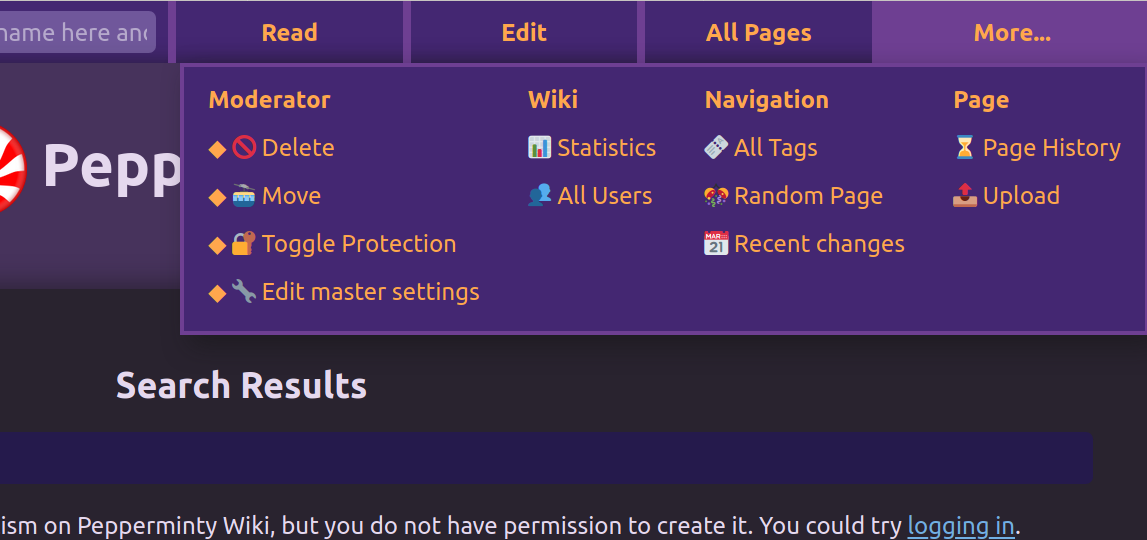
Another notable change is the new 'mega-menu' style more menu:

image

That menu has been bothering me for a while, and thanks to the kind people on Reddit, I've now got a solution.

Note that you'll need to delete nav_links_extra from your peppermint.json in order for it to take effect.

Please also test the theme gallery in particular. It's brand-new in this release and quite complicated under-the-hood, so I'd appreciate some extra eyes on that.

As for when I'll release v1.0, I'm not sure. As a program, Pepperminty Wiki is certainly stable enough to be used in production scenarios today - so perhaps incrementing the version number to v1.0 would be a good idea to reflect that. At the same time though, there are a number of missing features - most notably watchlists and further improvements to the page history system - so I'm not sure when I'll be confident enough to bump it to v1.0.

Either way, I'm pretty sure that I'll keep working on Pepperminty Wiki for years to come - I have no plans to cease development at this time. While Pepperminty Wiki releases don't move at the most rapid of paces, I aim to get about 2 releases out per year about 6 months apart from each other.

Special thanks to @SeanFromIT for reporting a number of bugs which have been squashed.

If you use Pepperminty Wiki, tweet me @SBRLabs! I'd love to hear about how you're using it.

Lastly, don't forget to take a backup of your wiki before updating. While I've made every effort to squash bugs, you can never be too careful :P

Check out v0.20 here:

Pepperminty Wiki v0.20

MDNS: Simple device addressing for home networks

We all know about DNS, and how it forms one of the foundations of the Internet. With a hierarchical system of caching DNS resolvers, it provides a scalable system by which domain names (such as starbeamrainbowlabs.com) can be translated into their associated IP address (such as 2001:41d0:e:74b::1 or 5.196.73.75). You can register your own domain name for a modest fee, and point it at a web server to host a website.

But what about a local home network? In such an environment, where devices get switched on and off and enter and leave the network on a regular basis, manually specifying DNS records for devices which may even have dynamic IP addresses is a chore (and dynamic DNS solutions are complex to setup). Is there an easier way?

As I discovered the other day, it turns out the answer is yes - and it comes in the form of Multicast DNS, which abbreviates to MDNS. MDNS is a decentralised peer-to-peer protocol that lets devices on a small home network announce their names and their IP addresses in a standard fashion. It's also (almost) zero-configuration, so as long as UDP port 5353 is allowed through all your devices' firewalls, it should start working automatically.

Linux users will need avahi-daemon installed and running, which should be the default on popular distributions such as Ubuntu. Windows users with a recent build of Windows 10 should have it enabled by default too - and if I understand it right, macOS users should also have it enabled by default (though I don't have a mac, or a Windows machine, to check these on).

For example, if Bob has a home network with a file server on it, that file server might announce it's name as bobsfiles. This is automatically translated to be the fully-qualified domain name bobsfiles.local.. When Bill comes around to Bob's house and turns on his laptop, it will send a multicast DNS message out to ask all the supporting hosts on the network what their names and IP addresses are to add them it it's cache. Then, all Bill has to do is enter bobsfiles.local. into their web browser (or file manager, or SSH client, any other networked application) to connect to Bob's file server and access Bob's cool rocket designs and cat pictures.

This greatly simplifies the setup of a home network, and allows for pseudo-hostnames even in a local setting! Very cool. At some point, I'd like to refactor my home network to make better use of this - and have 1 MDNS name per service I'm running, rather than using subfolders for everything. This fits in nicely with some clustering plans I have on the horizon too.....

With a bit of fiddling, you can assign multiple MDNS names to a single host too. On Linux, you can use avahi-publish:

avahi-publish --address -R bobsrockets.local X.Y.Z.W

...where X.Y.Z.W is your local machine's IP, and bobsrockets.local is the .local MDNS domain name you want to assign. This is a daemon process that needs to run in the background apparently which is a bit of a pain - but hopefully there's a better solution out there somewhere.

Own your code, part 6: The Lantern Build Engine

It's time again for another installment in the own your code series! In the last post, we looked at the git post-receive hook that calls the main git-repo Laminar CI task, which is the core of our Continuous Integration system (which we discussed in the post before that). You can see all the posts in the series so far here.

In this post we're going to travel in the other direction, and look at the build script / task automation engine that I've developed that goes hand-in-hand with the Laminar CI system - though it can and does stand on it's own too.

Introducing the Lantern Build Engine! Finally, after far too long I'm going to formally post here about it.

Originally developed out of a need to automate the boring and repetitive parts of building and packing my assessed coursework (ACWs) at University, the lantern build engine is my personal task automation system. It's written in 100% Bash, and allows tasks to be easily defined like so:

task_dostuff() {
    task_begin "Doing a thing";
    do_work;
    task_end "$?" "Oops, do_work failed!";

    task_begin "Doing another thing";
    do_hard_work;
    task_end "$?" "Yikes! do_hard_work failed.";
}

When the above task is run, Lantern will automatically detect the dustuff task, since it's a bash function that's prefixed with task_. The task_begin and task_end calls there are 2 other bash functions, which generate pretty output to inform the user that a task is starting or ending. The $? there grabs the exit code from the last command - and if it fails task_end will automatically display the provided error message.

Tasks are defined in a build.sh file, for which Lantern provides a template. Currently, the template file contains some additional logic such as the help text output if no tasks were specified - which is left-over from the time when Lantern was small enough to fit in the same file as the build tasks themselves.

I'm in the process of adding support for the all the logic in the template file, so that I can cut down on the extra boilerplate there even further. After defining your tasks in a copy of the template build file, it's really easy to call them:

./build dostuff

Of course, don't forget to mark the copy of the template file executable with chmod +x ./build.

The above initial example only scratches the surface of what Lantern can do though. It can easily check to see if a given command is installed with check_command:

task_go-to-the-moon() {
    task_begin "Checking requirements";
    check_command git true;
    check_command node true;
    check_command npm true;
    task_end 0;
}

If any of the check_command calls fail, then an error message is printed and the build terminated.

Work that needs doing in Lantern can be expressed with 3 levels of logical separation: stages, tasks, and subtasks:

task_build-rocket() {
    stage_begin "Preparation";

    task_begin "Gathering resources";
    gather_resources;
    task_end "$?" "Failed to gather resources";

    task_begin "Hiring engineers";
    hire_engineers;
    task_end "$?" "Failed to hire engineers";

    stage_end "$?";

    stage_begin "Building Rocket";
    build_rocket --size big --boosters 99;
    stage_end "$?";

    stage_begin "Launching rocket";
    task_begin "Preflight checks";
    subtask_begin "Checking fuel";
    check_fuel --level full;
    subtask_end "$?" "Error: The fuel tank isn't full!";
    subtask_begin "Loading snacks";
    load_items --type snacks --from warehouse;
    subtask_end "$?" "Error: Failed to load snacks!";
    task_end "$?";

    task_begin "Launching!";
    launch --countdown 10;
    task_end "$?";

    stage_end "$?";
}

Come to think about it, I should probably rename the function prefix from task to job. Stages, tasks, and subtasks each look different in the output - so it's down to personal preference as to which one you use and where. Subtasks in particular are best for commands that don't return any output.

Popular services such as [Travis CI]() have a thing where in the build transcript they display the versions of related programs to the build, like this:

$ uname -a
Linux MachineName 5.3.0-19-generic #20-Ubuntu SMP Fri Oct 18 09:04:39 UTC 2019 x86_64 x86_64 x86_64 GNU/Linux
$ node --version
v13.0.1
$ npm --version
6.12.1

Lantern provides support for this with the execute command. Prefixing commands with execute will cause them to be printed before being executed, just like the above:

task_prepare() {
    task_begin "Displaying environment details";
    execute uname -a;
    execute node --version;
    execute npm --version;
    task_end "$?";
}

As build tasks get more complicated, it's logical to split them up into multiple tasks that can be called independently and conditionally. Lantern makes this easy too:

task_build() {
    task_begin "Building";
    # Do build stuff here
    task_end "$?";
}
task_deploy() {
    task_begin "Deploying";
    # Do deploy stuff here
    task_end "$?";
}

task_all() {
    tasks_run build deploy;
}

The all task in the above runs both the build and deploy tasks. In fact, the template build script uses tasks_run at the very bottom to treat every argument passed to it as a task name, leading to the behaviour described above.

Lantern also provides an array of other useful functions to make expressing build sequences easy, concise, and readable - from custom colours to testing environment variables to see if they exist. It's all fully documented in the README of the project too.

As described 2 posts ago, the git-repo Laminar CI task (once it's spawned a hologram of itself) currently checks for the existence of a build or build.sh executable script in the root of the repository it is running on, and passes ci as the first and only argument.

This provides easy integration with Lantern, since Lantern build scripts can be called anything we like, and with a tasks_run call at the bottom as in the template file, we can simply define a ci Lantern task function that runs all our continuous integration jobs that we need to execute.

If you're interested in trying out Lantern for yourself, check out the repository!

https://gitlab.com/sbrl/lantern-build-engine#lantern-build-engine

Personally, I use it for everything from CI to rapid development environment setup.

This concludes my (epic) series about my git hosting and continuous integration. We've looked at git hosting, and taken a deep dive into integrating it into a continuous integration system, which we've augmented with a bunch of scripts of our own design. The system we've ended up with, while a lot of work to setup, is extremely flexible, allowing for modifications at will (for example, I have a webhook script that's similar to the git post-receive hook, but is designed to receive notifications from GitHub instead of Gitea and queue the git-repo just the same).

I'll post a series list post soon. After that, I might blog about my personal apt repository that I've setup, which is somewhat related to this.

Own your code, part 5: git post-receive hook

In the last post, I took a deep dive into the master git-repo job that powers the my entire build system. In the next few posts, I'm going to take a look at the bits around the edges that interact with this laminar job - starting with the git post-receive hook in this post.

When you push commits to a git repository, the remote server does a bunch of work to integrate your changes into the remote master copy of the repository. At various points in the process, git allows you to run scripts to augment your repository, and potentially alter the way git ultimately processes the push. You can send content back to the pushing user too - which is how you get those messages on the command-line occasionally when you push to a GitHub repository.

In our case, we want to queue a new Laminar CI job when new commits are pushed to a private Gitea server, for instance (like mine). Doing this isn't particularly difficult, but we do need to collect a bunch of information about the environment we're running in so that we can correctly inform the git-repo task where it needs to pull the repository from, who pushed the commits, and which commits need testing.

In addition, we want to write 1 universal git post-receive hook script that will work everywhere - regardless of the server the repository is hosted on. Of course, on GitHub you can't run a script directly, but if I ever come into contact with another supporting git server, I want to minimise the amount of extra work I've got to do to hook it up.

Let's jump into the script:

#!/usr/bin/env bash
if [ "${GIT_HOST}" == "" ]; then
    GIT_HOST="git.starbeamrainbowlabs.com";
fi

Fairly standard stuff. Here we set a shebang and specify the GIT_HOST variable if it's not set already. This is mainly just a placeholder for the future, as explained above.

Next, we determine the git repository's url, because I'm not sure that Gitea (my git server, for which this script is intended) actually tells you directly in a git post-receive hook. The post-receive hook script does actually support HTTPS, but this support isn't currently used and I'm unsure how the git-repo Laminar CI job would handle a HTTPS url:

# The url of the repository in question. SSH is recommended, as then you can use a deploy key.
# SSH:
GIT_REPO_URL="git@${GIT_HOST}:${GITEA_REPO_USER_NAME}/${GITEA_REPO_NAME}.git";
# HTTPS:
# git_repo_url="https://git.starbeamrainbowlabs.com/${GITEA_REPO_USER_NAME}/${GITEA_REPO_NAME}.git";

With the repository url determined, next on the list is the identity of the pusher. At this stage it's a simple matter of grabbing the value of 1 variable and putting it in another as we're only supporting Gitea at the moment, but in the future we may have some logic here to intelligently determine this value.

GIT_AUTHOR="${GITEA_PUSHER_NAME}";

With the basics taken care of, we can start getting to the more interesting bits. Before we do that though, we should define a few common settings:

###### Internal Settings ######

version="0.2";

# The job name to queue.
job_name="git-repo";

###############################

job_name refers to the name of the Laminar CI job that we should queue to process new commits. version is a value that we can increment should we iterate on this script in the future, so that we can then tell which repositories have the new version of the post-receive hook and which ones don't.

Next, we need to calculate the virtual name of the repository. This is used by the git-repo job to generate a 'hologram' copy of itself that acts differently, as explained in the previous post. This is done through a series of Bash transformations on the repository URL:

# 1. Make lowercase
repo_name_auto="${GIT_REPO_URL,,}";
# 2. Trim git@ & .git from url
repo_name_auto="${repo_name_auto/git@}";
repo_name_auto="${repo_name_auto/.git}";
# 3. Replace unknown characters to make it 'safe'
repo_name_auto="$(echo -n "${repo_name_auto}" | tr -c '[:lower:]' '-')";

The result is quite like 'slugification'. For example, this URL:

git@git.starbeamrainbowlabs.com:sbrl/Linux-101.git

...will get turned into this:

git-starbeamrainbowlabs-com-sbrl-linux----

I actually forgot to allow digits in step #3, but it's a bit awkward to change it at this point :P Maybe at some later time when I'm feeling bored I'll update it and fiddle with Laminar's data structures on disk to move all the affected repositories over to the new naming scheme.

Now that we've got everything in place, we can start to process the commits that the user has pushed. The documentation on how this is done in a post-receive hook is a bit sparse, so it took some experimenting before I had it right. Turns out that the information we need is provided on the standard input, so a while-read loop is needed to process it:

while read next_line
do
    # .....
done

For each line on the standard input, 3 variables are provided:

  • The old commit reference (i.e. the commit before the one that was pushed)
  • The new commit reference (i.e. the one that was pushed)
  • The name of the reference (usually the branch that the commit being pushed is on)

Commits on multiple branches can be pushed at once, so the name of the branch each commit is being pushed to is kind of important.

Anyway, I pull these into variables like so:

oldref="$(echo "${next_line}" | cut -d' ' -f1)";
newref="$(echo "${next_line}" | cut -d' ' -f2)";
refname="$(echo "${next_line}" | cut -d' ' -f3)";

I think there's some clever Bash trick I've used elsewhere that allows you to pull them all in at once in a single line, but I believe I implemented this before I discovered that trick.

With that all in place, we can now (finally) queue the Laminar CI job. This is quite a monster, as it needs to pass a considerable number of variables to the git-repo job itself:

LAMINAR_HOST="127.0.0.1:3100" LAMINAR_REASON="Push from ${GIT_AUTHOR} to ${GIT_REPO_URL}" laminarc queue "${job_name}" GIT_AUTHOR="${GIT_AUTHOR}" GIT_REPO_URL="${GIT_REPO_URL}" GIT_COMMIT_REF="${newref}" GIT_REF_NAME="${refname}" GIT_AUTHOR="${GIT_AUTHOR}" GIT_REPO_NAME="${repo_name_auto}";

Laminar CI's management socket listens on the abstract unix socket laminar (IIRC). Since you can't yet forward abstract sockets over SSH with OpenSSH, I instead opt to use a TCP socket instead. To this end, the LAMINAR_HOST prefix there is needed to tell laminarc where to find the management socket that it can use to talk to the Laminar daemon, laminard - since Gitea and Laminar CI run on different servers.

The LAMINAR_REASON there is the message that is displayed in the Laminar CI web interface. Said interface is read-only (by design), but very useful for inspecting what's going on. Messages like this add context as to why a given job was triggered.

Lastly, we should send a message to the pushing user, to let them know that a job has been queued. This can be done with a simple echo, as the standard output is sent back to the client:

echo "[Laminar git hook ${version}] Queued Laminar CI build ("${job_name}" -> ${repo_name_auto}).";

Note that we display the version number of the post-receive hook here. This is how I tell whether I need to give into the Gitea settings to update the hook or not.

With that, the post-receive hook script is complete. It takes a bunch of information lying around, transforms it into a common universal format, and then passes the information on to my continuous integration system - which is then responsible for building the code itself.

Here's the completed script:

#!/usr/bin/env bash

##############################
########## Settings ##########
##############################

# Useful environment variables (gitea):
#   GITEA_REPO_NAME         Repository name
#   GITEA_REPO_USER_NAME    Repo owner username
#   GITEA_PUSHER_NAME       The username that pushed the commits

#   GIT_HOST                Domain name the repo is hosted on. Default: git.starbeamrainbowlabs.com

if [ "${GIT_HOST}" == "" ]; then
    GIT_HOST="git.starbeamrainbowlabs.com";
fi

# The url of the repository in question. SSH is recommended, as then you can use a deploy key.
# SSH:
GIT_REPO_URL="git@${GIT_HOST}:${GITEA_REPO_USER_NAME}/${GITEA_REPO_NAME}.git";
# HTTPS:
# git_repo_url="https://git.starbeamrainbowlabs.com/${GITEA_REPO_USER_NAME}/${GITEA_REPO_NAME}.git";

# The user that pushed the commits
GIT_AUTHOR="${GITEA_PUSHER_NAME}";

##############################

###### Internal Settings ######

version="0.2";

# The job name to queue.
job_name="git-repo";

###############################

# 1. Make lowercase
repo_name_auto="${GIT_REPO_URL,,}";
# 2. Trim git@ & .git from url
repo_name_auto="${repo_name_auto/git@}";
repo_name_auto="${repo_name_auto/.git}";
# 3. Replace unknown characters to make it 'safe'
repo_name_auto="$(echo -n "${repo_name_auto}" | tr -c '[:lower:]' '-')";

while read next_line
do
    oldref="$(echo "${next_line}" | cut -d' ' -f1)";
    newref="$(echo "${next_line}" | cut -d' ' -f2)";
    refname="$(echo "${next_line}" | cut -d' ' -f3)";
    # echo "********";
    # echo "oldref: ${oldref}";
    # echo "newref: ${newref}";
    # echo "refname: ${refname}";
    # echo "********";

    LAMINAR_HOST="127.0.0.1:3100" LAMINAR_REASON="Push from ${GIT_AUTHOR} to ${GIT_REPO_URL}" laminarc queue "${job_name}" GIT_AUTHOR="${GIT_AUTHOR}" GIT_REPO_URL="${GIT_REPO_URL}" GIT_COMMIT_REF="${newref}" GIT_REF_NAME="${refname}" GIT_AUTHOR="${GIT_AUTHOR}" GIT_REPO_NAME="${repo_name_auto}";
    # GIT_REF_NAME and GIT_AUTHOR are used for the LAMINAR_REASON when the git-repo task recursively calls itself
    # GIT_REPO_NAME is used to auto-name hologram copies of the git-repo.run task when recursing
    echo "[Laminar git hook ${version}] Queued Laminar CI build ("${job_name}" -> ${repo_name_auto}).";
done

#cat -;
# YAY what we're after is on the first line of stdin! :D
# The format appears to be documented here: https://git-scm.com/book/en/v2/Customizing-Git-Git-Hooks#_server_side_hooks
# Line format:
# oldref newref refname
# There may be multiple lines that all need handling.

In the next post, I want to finally introduce my very own home-brew build engine: lantern. I've used it in over half a dozen different projects by now, so it's high time I talked about it a bit more formally.

Found this interesting? Spotted a mistake? Got a suggestion to improve it? Comment below!

Using Cloudflare for DNS is awesome

Finally, a decent DNS provider! You might not have noticed, but I switched starbeamrainbowlabs.com to Cloudflare DNS the other month. I meant to blog about it at the time, but forgot - so I'm doing it now :P

This comes in a succession of various DNS providers such as GoDaddy and Uniregistry who, while nice enough, didn't really provide what I'm after.

The transfer process itself was really rather simple - much moreso than the transfer I did from GoDaddy to Uniregistry.

GoDaddy is way too expensive after the first year, and doesn't allow you to create many different DNS record types - instead preferring to roll them into various 'premium' products which I have neither the money nor the inclination to purchase. After all, you're only paying for a string of characters to be globally unique, and hosting for a small text file containing your DNS records!

Uniregistry is better, but they still don't support record types such as CAA, which let you whitelist who's allowed to issue SSL certificates for your domain.

Cloudflare, however, support all the record types. Even ones I've never heard of. It's so cool! They provide the service at cost-price (which means it's much cheaper than either Uniregistry and certainly GoDaddy), and they provide privacy as standard - at no extra cost! No individual should have to pay to hide their full name and address (I'm looking at you, GoDaddy).

You do have to be careful to set it to avoid proxying requests through Cloudflare for each DNS record you add, but this isn't a huge deal. Cloudflare's main business is improving the performance of your website by optimising it and serving it through their global network, after all - so I don't think I can fault them for setting it as the default :P

It's also slightly awkward that you can't actually buy domains through Cloudflare. You have to buy them elsewhere and transfer them in, which is a huge pain. I guess that if they let you buy domains directly, the rest of the domain-name trading business would collapse? Thoughtful of them I suppose, but considering that you can pay literally thousands of pounds for some domain names it does begin to make me wonder......

Anyway, I haven't yet moved starbeamrainbowlabs.co.uk over because Cloudflare don't support .co.uk domains yet, but if I haven't by the time this blog post comes out I'll be setting the name servers to Cloudflare at least very soon (top tip! You can set the name servers for a domain that you own to another provider like Cloudflare, even if you've got your domain registered with another company like Uniregistry).

Found this interesting? Transferring your domain name over? Got another cool provider? Comment below!

Converting multiline text to an image in PHP

This post is late because I lost the post I had written when I tried to save it - I need to find a new markdown editor. Do let me know if you have any suggestions!

I was working on Pepperminty Wiki earlier, and as I was working on external diagram renderer support (coming soon! It's really cool) I needed to upgrade my errorimage() function to support multi-line text. Pepperminty Wiki's key feature is that it's portable and builds (with a custom build system) to a single file of PHP that's plug-and-play, so no nice easy libraries here!

Instead, said function uses GD to convert text to images. This is kind of useful when you want to send back an error, but you also want to send an image because otherwise the user won't see it as they've used an <img src="" /> tag, which doesn't support displaying text, obviously.

To this end, I found myself wanting to add multi-line text support. This was quite an interesting task, because as errorimage() uses GD and Pepperminty Wiki needs to be portable, I can't use imagettftext() and use a nice font. Instead, it uses imagestring(), which draws things in a monospace font. This actually makes the whole proceeding much easier - especially since imagefontwidth() and imagefontheight() give us the width and height of a character respectively.

Here's what the function looked like before:

/**
 * Creates an images containing the specified text.
 * Useful for sending errors back to the client.
 * @package feature-upload
 * @param   string  $text           The text to include in the image.
 * @param   int     $target_size    The target width to aim for when creating
 *                                  the image.
 * @return  resource                The handle to the generated GD image.
 */
function errorimage($text, $target_size = null)
{
    $width = 640;
    $height = 480;

    if(!empty($target_size))
    {
        $width = $target_size;
        $height = $target_size * (2 / 3);
    }

    $image = imagecreatetruecolor($width, $height);
    imagefill($image, 0, 0, imagecolorallocate($image, 238, 232, 242)); // Set the background to #eee8f2
    $fontwidth = imagefontwidth(3);
    imagestring($image, 3,
        ($width / 2) - (($fontwidth * mb_strlen($text)) / 2),
        ($height / 2) - (imagefontheight(3) / 2),
        $text,
        imagecolorallocate($image, 17, 17, 17) // #111111
    );

    return $image;
}

...it's based on a Stack Overflow answer that I can no longer locate. It takes in a string of text, and draws an image with the specified size. This had to change too - since the text might not fit in the image. The awkward thing here is that I needed to maintain the existing support for the $target_size variable, making the code a bit messier than it needed to be.

To start here, let's define a few extra variables to hold some settings:

$width = 0;
$height = 0;
$border_size = 10; // in px, if $target_size isn't null has no effect
$line_spacing = 2; // in px
$font_size = 5; // 1 - 5

Looking better already! Variables like these will help us tune it later (I'm picky). The font size in PHP is a value from 1 to 5, with higher values corresponding to larger font sizes. The $border_size is the number of pixels around the text that we want to add as padding when we're in auto-sizing mode to make it look neater. The $line_spacing is the number of extra pixels of space we should add between lines to make the text look better.

So, about that image size. We'll need the size of a character for that:

$font_width = imagefontwidth($font_size);   // in px
$font_height = imagefontheight($font_size); // in px

....and we'll need to split the input text into a list of lines too:

$text_lines = array_map("trim", explode("\n", $text));

We use an array_map() call here to ensure we chop the whitespace of the end, because strange whitespace characters lying around will result in odd characters appearing in the output image. If the target size is set, then calculating the actual size of the image is easy:

if(!empty($target_size)) {
    $width = $target_size;
    $height = $target_size * (2 / 3);
}

If not, then we'll have to do some fancier footwork to count the maximum number of characters on a line to find the width of the image, and the number of lines we have for the image height:

else {
    $height = count($text_lines) * $font_height + 
        (count($text_lines) - 1) * $line_spacing +
        $border_size * 2;
    foreach($text_lines as $line)
        $width = max($width, $font_width * mb_strlen($line));
    $width += $border_size * 2;
}

Here we also don't forget about the line spacing either - which to get the number of spaces between the lines, we need to take the number of lines minus one. We also add the border as an offset value to the width and height too - multiplied by 2 because there's a border on both sides of the text.

Next, we need to create an image to draw the text to. This is largely the same as before:

$image = imagecreatetruecolor($width, $height);
imagefill($image, 0, 0, imagecolorallocate($image, 250, 249, 251)); // Set the background to #faf8fb

Now, we're ready to draw the text itself. This needs to now be done with a loop, because we've got multiple lines of text to draw - and imagestring() doesn't support that as we've discussed above. We also need to keep track of the index of the loop, so a temporary value is required:

$i = 0;
foreach($text_lines as $line) {
    // ....

    $i++;
}

With the loop in place, we can make the call to imagestring():

imagestring($image, $font_size,
    ($width / 2) - (($font_width * mb_strlen($line)) / 2),
    $border_size + $i * ($font_height + $line_spacing),
    $line,
    imagecolorallocate($image, 68, 39, 113) // #442772
);

This looks full of maths, but it's really quite simple. Let's break it down. Lines #2 and #3 there are the $(x, y)$ of the top-left corner at which the text should be drawn. Let's look at them in turn.

The $x$ co-ordinate (($width / 2) - (($font_width * mb_strlen($line)) / 2)) centres the text on the row. Basically, we take the centre of the image $width / 2), and take away ½ of the text width - which we calculate by taking the number of characters on the line, multiplying it by the width of a single character, and dividing it by 2.

The $y$ co-ordinate ($border_size + $i * ($font_height + $line_spacing)) is slightly different, because we need to account for the border at the top of the image. We take the font height, add the line spacing, and multiply it by the index of the text line that we're drawing. Since values start from 0 here, this will have no effect for the first line of text that we process, and it'll be drawn at the top of the image. We add to this the border width, to avoid drawing it inside the border that we've allocated around the image.

Lastly, the imagecolorallocate() call there tells GD the colour that we want to draw the text in via RGB. I've added a comment there because my editor highlights certain colour formats with the actual colour they represent, which is cool.

All that's left here is to return the completed image:

return $image;

....then we can do something like this:

if(!empty($error)) {
    http_response_code(503);
    header("content-type: image/png");
    imagepng(errorimage("Error: Something went\nwrong!")); // Note: Don't ever send generic error messages like this one. It makes for a bad and frustrating user (and debugging) experience.
}

I'm including the completed upgrade to the function at the bottom of this blog post. Here's an example image that it can render:

Found this interesting? Done some refactoring of your own recently? Comment below!)


(Can't see the above? Try a direct link.)

Art by Mythdael